Two-factor authentication
Two-factor authentication strengthens the security of the online password: on top of their password, the user must provide a one-time code generated by a mobile application.
It can be made mandatory for every user from the Security policies module, through the Enable two-step authentication option.
Configuration
Two-factor authentication requires an application able to generate a software token and to implement two-step verification services with the TOTP algorithm (Time-based One-time Password Algorithm), such as Google Authenticator.
At the first sign-in, the following screen is displayed to configure your application:
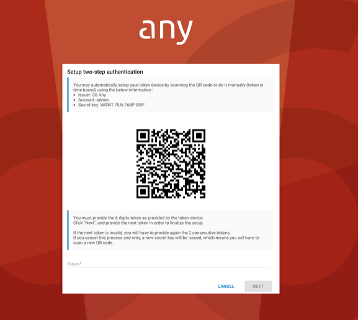
- Scan the QR code with your mobile or configure it by hand with the information displayed on screen,
- The mobile application displays the first code. Enter it in the "Token" field of the screen, then press the "next" button,
- The following screen appears, to enter the second code:
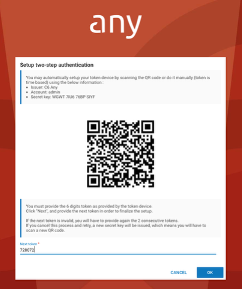
- Enter the second code given by your mobile application, then press the "next" button. The configuration is over and the sign-in screen appears.
Sign in to Any
To sign in to Any, enter your user name, your password and the code given by your mobile application in the following screen:
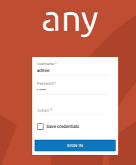
Press the "Sign in" button and you are signed in.
Reconfigure while signed in
From Any, a signed-in user who already has two-factor authentication can reset their configuration.
The user first clicks the reset action in the profile panel. When the following screen appears (the initial setup process):
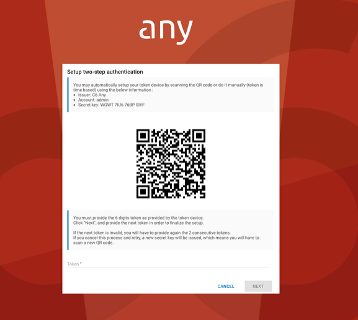
From the mobile application, removing or deleting the previous configuration before scanning the new QR code is strongly advised. Even though the application may detect that configuration and warn that it is about to replace an existing configured account, it may not actually replace it beforehand, which produces an invalid token. Once it has been removed, the user can scan the QR code and follow the configuration described in the sections above.
Unable to sign in
A user who is no longer signed in to Any and who cannot provide a valid token can ask an advanced user to reset their two-factor authentication configuration. This is done from the users administration section, directly on the properties of the user concerned. A user manager or a super administrator must edit the properties of the user and tick the "reset two-step authentication" box. Once the user properties are saved, Any deletes the two-step configuration for the user concerned. The user can then try to sign in to Any and the initial setup step will be quick.