Extensions
Any can add custom extensions. There are two types of extensions:
- REST calls, which can make calls to the Any REST APIs or to external REST calls
- HTML extensions, which can be used as a section, a tab, a dedicated tile or called from a menu and opened in a dialog box.
This document describes what can be done with the extensions and how you can generate your own extension.
REST-call-based extensions
These extensions can call:
- The REST APIs of Any, which, in particular, create rooms, groups or update a document.
- External URLs, which run custom actions.
In Any 17 and the previous versions, the calls to the Any REST APIs were made in a dedicated module called "Script". It was merged with the extensions in Any 18.
To configure the calls to the Any REST APIs, please refer to the documentation on the Any REST APIs.
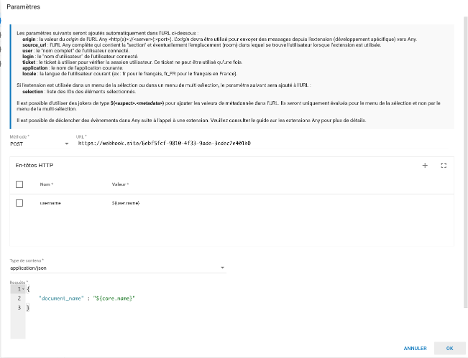
To configure the external REST calls, you must define a URL that is called. This URL has parameters added automatically (they are described in the URL parameters chapter).
To enter the URL and its parameters:
- Select Extension type: External REST call
- In the table at the very bottom, click the + to create a row
- Select a REST service
- Click Parameters
You can also put your own parameters in the URL using the ${} wildcards (for instance ${core.name} or ${user.login}) to retrieve contextual data. You can also use these wildcards in the http headers or in the request object.
The external REST calls can trigger actions in the interface of Any by returning JSON in their response.
If several REST calls are chained, only the JSON of the last REST call is evaluated.
The JSON that can be returned is described in the Trigger all the extension actions chapter.
HTML extensions
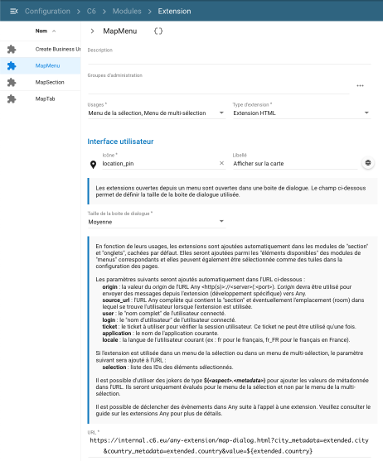
In Any, the extensions embed custom web applications as dedicated sections or in a dialog box opened from a menu.
The extensions are embedded in Any with an iframe that opens the custom web application embedded in Any. There is no limitation in terms of the technology you want to use for your custom web application, as long as it can be displayed in an internet browser.
In the extension configuration of Any, you must define the URL that must be opened in the iframe. This URL has parameters added automatically (described in the URL parameters chapter) but you can also add your own URL parameters.
URL parameters
At the end of the URL of the HTML extension and at the end of the URLs of the external REST calls, Any automatically adds query parameters related to the user context.
If query parameters already exist in the configured URL, the following parameters are added after them.
The following parameters are always added automatically in the URL:
- origin: holds the value of the origin of the Any URL (protocol + host name + port).
The origin must be used to send messages from the extension to Any. - source_url: full URL of the page holding the section and possibly the room the user is in. It is built on the public server URL as defined in the server settings, so that it stays reachable from outside. If that URL is not set, the address used by the browser.
- user: full name of the current user.
- login: login of the current user.
- ticket: ticket to use to check the user session (usable once).
- application: name of the current application.
- locale: locale of the user.
If the extension is used in a selection or multi-selection menu, the following parameter is added:
- selection: list of the selected content IDs.
Trigger all the extension actions
Any actions can be triggered from your extension by returning JSON. The returned JSON defines the action run.
From an HTML extension
If you want to trigger an action from an HTML extension, you must send messages to Any from the iframe.
The messages can be sent using the JS function:
window.parent.postMessage({...}, origin);
This function sends JSON and requires an origin to work.
To be able to trigger any action, you must use as origin the value of the origin parameter described in the URL parameters chapter.
From an external REST call
If you want to trigger an action from an external REST call, the call must return a JSON based on the called action. The possible actions that can be triggered, and their return JSON, are described in the following chapters.
View
The view of the content of the document can be triggered.
JSON to return:
{
  "event_type": "view",
  "id": "g_c_f7e9663b-c08b-4ca9-8d90-1d8b3444e9c5",
  "title": "Document preview"
}
Required fields:
| Field name | Type | Required | Description |
|---|---|---|---|
| event_type | String | X | Must be set to view |
| id | String | X | Must hold the document core.object_id you want to display |
| title | String | Can hold a value that is displayed as the title of the display pop-up dialog box in Any instead of "Preview". |
Refresh the selection
The refresh of the selected content in Any can be triggered, for instance if you want to display in Any some changes made by the extension. This type of action only works for the extensions called from the selection or multi-selection menu. Display the content of the document by returning the following JSON:
JSON to return:
{
  "event_type": "refresh",
  "ids": ["g_c_8d90-1d8b3444e9c5", "g_c_8d90-1d8b3444e9c5"]
}
Required fields:
| Field name | Type | Required | Description |
|---|---|---|---|
| event_type | String | X | Must be set to refresh |
| ids | Array of strings | X | Must hold an array of document core.object_id you want to refresh in Any. These documents must be in the list of the documents. |
Locate
A location of documents in their room can be triggered.
JSON to return:
{
'event_type': 'locate',
'ids': ['g_c_8d90-1d8b3444e9c5',' g_c_8d90-1d8b3444e9c5'],
'room_id': 'demo_room_001',
'filters': [{ 'name':'core.object_type','comp': 'eq','value':'procedure'}],
'keywords': 'my searched term'
}
Required fields:
| Field name | Type | Required | Description |
|---|---|---|---|
| event_type | String | X | Must be set to locate |
| ids | Array of Strings | X | Must hold an array of document core.object_id you want to locate |
| room_id | String | Can hold a room ID to force the location to be in this room. | |
| filters | Array of filters | Can hold an array of filter objects to add additional filters in the room where the documents are located. | |
| keywords | String | Can hold terms that are added to the search bar in the room and searched. |
The filters are JSON objects defined this way:
| Field name | Type | Required | Description |
|---|---|---|---|
| name | String | X | Name of the metadata you want to filter on, such as "core.name" or "extended.country" |
| comp | String | X | Type of comparator you want to use. The available comparators are: eq: checks if the metadata is equal to the value. Must be used with a String value. ne: checks if the metadata is not equal to the value. Must be used with a String value. contains: checks if the metadata holds the value. Must be used with a String value. in: checks if the metadata is equal to one of the values. Must be used with an array of strings as value. ni: checks if the metadata is not equal to the values. Must be used with an array of strings as value. |
| value | String or Array of String | X | Value you want to compare to the metadata. |
Search
A location of documents in their room can be triggered.
JSON to return:
{
'event_type': 'search',
'room_id': 'demo_room_001',
'filters': [{ 'name':'core.object_type','comp': 'eq','value':'procedure'}],
'keywords': 'my searched term'
}
The JSON that must be sent to trigger this action must have the following fields:
| Field name | Type | Required | Description |
|---|---|---|---|
| event_type | String | X | Must be set to search |
| room_id | String | Can hold a room ID to force the search to run in this room. If no room_id is specified, the search runs in the global search section. | |
| filters | Array of filters | Can hold an array of filter objects to add additional filters where the documents are searched. | |
| keywords | String | Can hold terms that are added to the search bar in the room and searched. |
Extension examples
Any ships with two extension examples that add a map in Any, one to be used as a section, the other to be used in the selection and multi-selection menu. The source code can be used as an example of creating an Any extension.
Map section
This extension is stored in the map-section.html file, provided in Any - Extension Samples.zip.
The purpose of this extension is to be able to search contents by putting a marker on a city, then running a search on a metadata passed as a parameter.
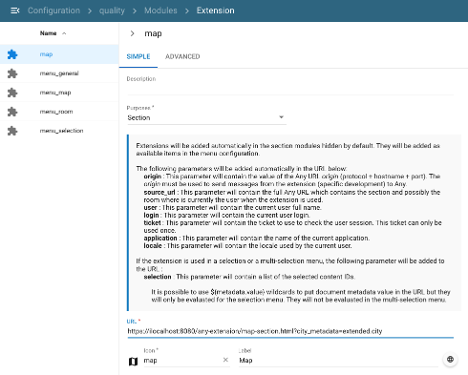
To be able to use this extension, you must configure the URL like this:
https://<server>:port/any-extensions/map-section.html?city_metadata=<metadata holding the name of the city>
Once you have added the extension in the section module, you can see this:
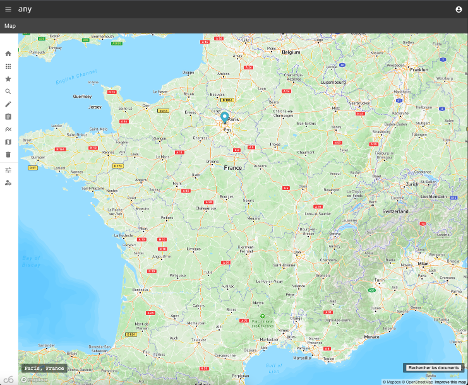
In this extension, when you click the button, the following function runs to trigger a search in Any:
//Fonction utilisée pour déclencher une recherche dans Any
var searchDocuments = function() {
    // We extract the city name
    var city = place_name.split(', ')[0];

    //We create an array of filters objects
    var filters = [
        { 'name': cityMetadata, 'comp': 'eq', 'value': city }
    ];

    //We send a message back to Any by specifying the origin sent as parameter
    window.parent.postMessage({
        'event_type': 'search',
        'filters': filters
    }, origin);
}
In this function, we create an array with a filter and send the message to Any using the origin passed as a parameter.
Map dialog box
This extension is stored in the map-dialog.html file, provided in the Any - Extension Samples.zip archive.
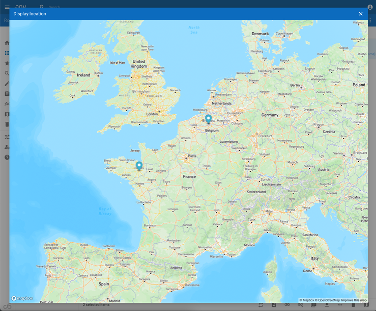
The purpose of this extension is to be able to locate on the map the value of a metadata that holds a city name. The name of the metadata is passed as a parameter.
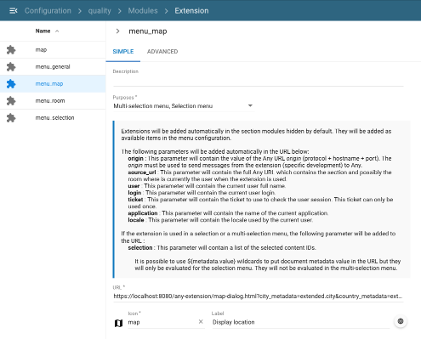
To be able to use this extension, you must configure the URL like this:
https://<server>:port/any-extensions/map-dialog.html?city_metadata=extended.city&country_metadata=extended.country
Once you have added the extension in the section module, you can see this:
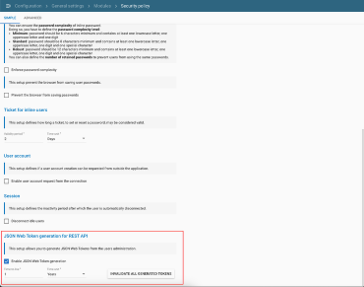
This extension uses the Any REST API, so for it to work correctly, the current user must have the "REST APIs User" role and you must also enable the "JSON Web Token generation" in the security policy module.
This extension works as follows:
- First, we retrieve the JSON Web Token to be able to authenticate the REST API and we store the token to send as a header.
var postData = { 'login': login, 'password': ticket };
var anyUrl = sourceUrl.substring(0,sourceUrl.indexOf('/app/'+application));
var restApiUrl = anyUrl + '/rest/api/auth/login';

// We retrieve the authentication token
axios.post(restApiUrl, postData).then(function (response) {
   if (response && response.data) {
       if (response.data.is_authentication_error) {
           alert("Your session has expired, please refresh your browser.");
           return;
       }

       authBearer = {
           headers: {
               'Authorization': response.data.token_type + ' ' + response.data.access_token
           }
       };
- Then, for each document ID passed in the selection parameter, we retrieve all its metadata
//For each content ID we prepare the URL to retrieve contents
for (id of selection)
    dumpUrls.push(anyUrl + '/rest/api/app/' + application + '/contents/' + id);

var requests = dumpUrls.map((url) => axios.get(url, authBearer));

//For each content ID sent as query parameters, we retrieve the metadata
axios.all(requests).then(function (responses) {

    var geocodePromises = [];
    for (var i = 0; i < responses.length; i++) {
        var response = responses[i];
        console.info(response);
        if (response && response.data) {
            var document = response.data.result[selection[i]];
            if (document) {
                //We retrieve the country and the city value
                var sQuery = C6.getPropertyValue(document.metadata, cityMetadata) + ' ' + C6.getPropertyValue(document.metadata, countryMetadata);
                //And based on those value, we retrieve the coordinates
                geocodePromises.push(
                    mapboxClient.geocoding.forwardGeocode({
                        query: sQuery,
                        autocomplete: false,
                        limit: 1
                    }).send()
                );
            }
        }
    }
- Finally, we use the mapbox API to locate the city and display it on the map.
var features = [];
Promise.all(geocodePromises).then(function (responses) {
    //For each coordinate, we add a marker on the map
    for (var i = 0; i < responses.length; i++) {
        var response = responses[i];
        if (
            !response ||
            !response.body ||
            !response.body.features ||
            !response.body.features.length
        ) {
            console.error('Invalid response:');
            console.error(response);
            return;
        }

        const feature = response.body.features[0];

        if (i == 0) {
            map = new mapboxgl.Map({
                container: 'map',
                // Choose from Mapbox's core styles, or make your own style with Mapbox Studio
                style: 'mapbox://styles/mapbox/streets-v12',
                center: feature.center,
                zoom: 8
            });
        }

        features.push(feature);
    }

    var bounds = new mapboxgl.LngLatBounds();
    for (feature of features) {
        new mapboxgl.Marker().setLngLat(feature.center).addTo(map);
        bounds.extend(feature.geometry.coordinates);
    }

    if (responses.length > 1)
        map.fitBounds(bounds, { padding: 100 });
});