YouSign
YouSign is an electronic signature solution. This integration has Any contents signed through YouSign.
This page describes the full setup: what to do on the YouSign side, then on the Any side.
Signature on iOS: on iOS mobile and tablet, the YouSign signature does not work under Safari, only under Chrome.
Steps
- Generate an API key in YouSign.
- Declare a webhook in YouSign, so the signed document comes back into Any.
- Create a server access configuration in Any, with this API key.
- Ensure the users exist on both sides, with the same email address.
- Configure the content transformation, to place the signature locations.
- Configure the signature module and the flow that triggers it.
Yousign - API Key
To be able to use YouSign from Any, you must generate an API key that is then used in the Any configuration.
Sign in to your YouSign account and go to the API section, then click Create a new key.
Set the environment and the Permissions to Full-Access and click Create an API key.
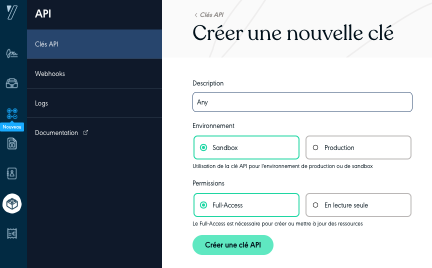
Store this API key: it is used at the Server access configuration step.
YouSign - Webhook
When a document is signed in YouSign, the signed content must be returned to Any using a return URL.
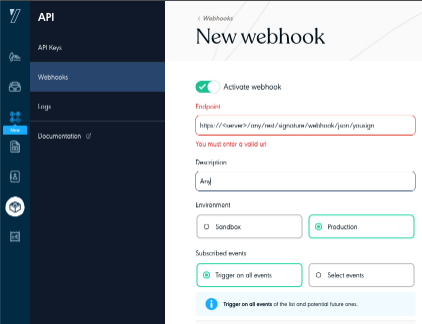
This is configured in the API / Webhook part of your YouSign account.
In this section, create a new webhook by clicking Create a webhook.
In the Endpoint field, enter a URL built like this:
https://<server>/any/rest/signature/webhook/json/yousign
The YouSign servers must be able to reach this URL, so make sure this URL is reachable from outside your network.
Server access configuration
Create a configuration in the Server access module:
Access URL: https://api.yousign.app/v3, or https://api-sandbox.yousign.app/v3 for the "sandbox" environment
Purpose: YouSign
Authorization scheme: Bearer
Token: the API key generated at the Yousign - API Key step
Users
To work correctly, the Any users who must sign must also be created in YouSign.
The users must have the same email address in Any and in YouSign.
Content transformation configuration
YouSign uses tags (or anchors) to place the signatures in the contents to sign.
These contents must either hold these tags directly in their content, or the tags can be added in a signature page automatically by Any.
This signature page is defined in the Content transformations module.
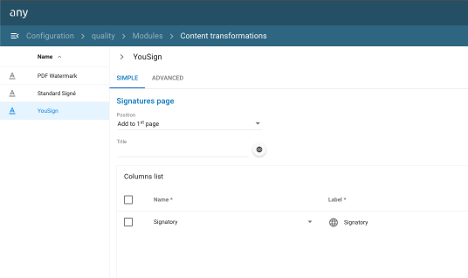
If you do not define them, default values are applied and the number of signature locations matches the number of signatories defined at the start of the signature.
Configuration in Any
Configure a YouSign type signature in the Signatures module, selecting the server access created above:
- Signature step:
-
Signature level: one of the following levels:
- Simple eSignature
- Advanced eSignature
- Qualified eSignature
-
One-Time-Password: reception of the code by mail, by SMS, or no reception.
-
Signature width / height / anchor: this signature provider uses anchors to place signatures in the content. The native content must have anchors, or an automated signature page must be used through the Content transformations module, as described above in Content transformation configuration. With the automated signature page, you can define:
- the width.
- the height.
- the minimum number of signature placeholders.
If these values are not defined, a default width and height are used, and the number of signature placeholders matches exactly the number of signatories at the launch.
-
- Options for manual signature:
- Allow manual signature: signature triggered by a menu on a document or a set of documents, rather than by a workflow. The selected documents must share the same signature configuration.
- The recipient is the user requesting signature: the content is sent to YouSign for signature for the signed-in user.
- Recipients are defined as follows: the content is sent to YouSign for signature for the user defined as follows.
- Allow recipients modification: the initiator can adjust the list before the send.
- Allow external mail recipients: allows external mail for the recipients.
- Available recipients: recipients available for the signature (users or groups).
- Default selected recipients: default recipients for the signature (users or groups).
- Validity period: validity period in days.
- External workflow name: name of the wanted workflow in YouSign. To insert a metadata of the document in the name, use a wildcard:
${<aspect>.<metadata>}: for instance, to insert the name of the document:${core.name}. - Save recipients into a metadata: metadata that stores the recipients.
Then configure the Send content for signature flow, which determines which signature module applies and to which content.