Bulk import
Overview
Presentation
The bulk import tool is used when you want to migrate large volumes of existing data coming from another system, to inject them into the Any base by implementing your Java program. This process was designed to maximize the import speed and requires a prior preparation of the data so it is compatible with the target configuration (aspects and data lists). The tool can only create new documents: it cannot be used to update or delete data (see the Sync API). The import is done through messages posted in a queue handled by the Any message server. Warning: to avoid saturating the message server with the binary contents, the processing of the files must be done manually, through a copy of the files by the scripts provided by the tool or through shared folders.
Prerequisites
The tool requires the installation of Java 11 or a later version on the computer.
Installation
To install the synchronization tool, extract the BulkImporter.zip archive into a folder.
Usage
To use the bulk import, you must implement your program with the APIs and the examples provided in the project. If you want to perform the bulk import through CSV files holding your metadata already prepared, you must use the FileSystemImporter tool.
Server configuration
Depending on your architecture, you will have to configure the tool to connect to Any. The settings are done in the settings.json file, inside the config folder of the decompressed archive.
On-premise configuration
If you have an on-premise installation, you must configure the synchronization tool to connect to the Any ActiveMQ server that receives the synchronization messages.
In the settings.json file, edit the mdb-messaging part to set the values based on your environment. A particular parameter is the jms-server-address address, where the synchronization messages are published.
"mdb-messaging": {
    "jms_server_address": "tcp://<ActiveMQ Server Any>:61616",
    [...]
Any message server configuration (Messaging Server)
Running the bulk import actions and the post-actions can last several hours, depending on the complexity of your applications and the number of contents. In the settings.json file used by the Messaging Server, you must disable the timeout with the wireFormat.maxInactivityDuration=0 parameter.
"mdb-messaging": {
    "jms_server_address": "tcp://<ActiveMQ Server Any>:61616?wireFormat.maxInactivityDuration=0",
    [...]
Warning: this settings.json file is different from the one used to send the contents.
Bulk import Java project
Preparing the project
- Create a new Java project in your development IDE.
- Add, as internal or external dependencies, all the JAR files provided in the "lib" folder.
- Copy the content of the provided "sources" folder, in particular the "src/main/java" folder, into your project. Configure the latter so the "src/main/java" folder is identified as a sources folder.
- Add the "src/test/resources" folder to the project CLASSPATH.
- Add the "config" folder to the project CLASSPATH.
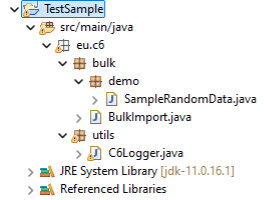
This project shows the use of the bulk import for a demo configuration. You will have to adapt it to your needs and add to it the reading of your data to be able to inject it.
Preparation
To use the bulk import APIs, you must reference the configuration of your application. Sign in as administrator in Any and export the full configuration of your application from the administration section.
API initialization
The initialization of the messaging server API uses the settings.json file available in your CLASSPATH. Reference this file in your CLASSPATH to be able to use it.
IMessagingProvider messaging = MessagingProviderLoader.getMessagingProvider();
To use the bulk import APIs, you must reference the configuration of your application. It is used to prepare and validate your data before the send. Export the full configuration of your application and reference it in your project, then initialize the API to read the Any configuration from this configuration.
// Loading configuration exported from Any to control the data mapping and aspects definitions
ConfigArchiveReader configReader = ConfigArchiveReader.getConfigArchiveReaderFromResources
("sample/config/Export-Config.zip",
    Arrays.asList(Locale.FRENCH, Locale.ENGLISH));
The configuration can be loaded through the classpath or through an external file.
Building the data set
Creating an object
To send your data, you must build a list of AnyContent objects compatible with your configuration.
Create a new instance of AnyContent using the exported configuration, then fill in the basic data. The initialization prepares the object by assigning it a unique internal ID compatible with Any.
Metadata management
To fill in metadata without mapping, just assign the value by giving:
- the name of the aspect declared in the configuration.
- the name of the metadata.
IAnyContent obj = new AnyContent(configArchiveReader);

obj.setName("My name");
obj.setApplication("demo");
obj.setVersion("1.0", true);
obj.setCreationDate(new Date());
To fill in mapped data, just assign the value as well. The automatic configuration management formats the data so it is understandable by the Any engine and associated with the matching values list.
obj.setMetadata("standard", "title", "My title");
obj.setMetadata("standard", "subject", "My subject");
obj.setMetadata("standard", "status", "My status");
obj.setMetadata("standard", "keywords", Arrays.asList("Keyword 01", "Keyword 02"));
obj.setMetadata("standard", "authors", Arrays.asList("John Doe", "Jane Doe"));
Format management
To add a format to your object, you must specify the path of the source file. This path is used by Any as a fallback file if it is not found in the Any files folder (see the File management strategies section).
// Stocke le format avec le chemin futur du fichier comme source de copie ou de secours
obj.addFormat(fileUrl.toURI(), extension, extension, Files.size(fileUrl.toPath()), true);
You can add one or several non-primary formats.
// A rendition is another format but not set as primary
obj.addFormat(fileUrlPdf.toURI(), "pdf", "pdf", Files.size(fileUrlPdf.toPath()), false);
Adding to a static room
You can prepare your document so it is linked directly to one or several static rooms (without collection). Once imported, it is directly available in these rooms.
Warning: the ID of the mentioned room and its application must be valid in the Any base.
obj.addStaticRoom(roomId, application);
Version management
Versions are contents that share the same root ID. When you create a new version from a content, you can inherit the data of the parent and specify whether this new version is the latest.
IAnyContent contentv1 = new AnyContent(configReader);
contentv1.setName("Name of my content");
contentv1.setMetadata("standard", "title", "Title of my content");
contentv1.setVersion("1.0", false);
File file = new File("filev1.0.docx");
contentv1.addFormat(file.toURI(), "docx", "docx", Files.size(file.toPath()), true);

// Metadata are inherited, no need to set again name and title
IAnyContent contentv2 = contentv1.newVersion(true, "2.0", false);
file = new File("filev2.0.docx");
// New version does not have format, you need to set one
contentv2.addFormat(file.toURI(), "docx", "docx", Files.size(file.toPath()), true);

// Latest and current one
IAnyContent contentv3 = contentv1.newVersion(true, "3.0", true);
file = new File("filev3.0.docx");
contentv3.addFormat(file.toURI(), "docx", "docx", Files.size(file.toPath()), true);
Sending a list of documents to import
Once the list of contents is built, you can send it. It is preferable to specify a unique batch name to be able to distinguish them in Any.
To send the message, just build a new bulk import message and send it to the "BULK_IMPORT" type queue defined in the settings. See Queues.
IMessageBulkImport msg = new MessageBulkImport();

// Set source, application and batch number/name
msg.setSource(sourceName);
msg.setApplication(application);
msg.setBatchNumber(batchNumber);

// set the list of contents to import
msg.setBulkContents(batchImport);
// Set copy file strategy
msg.setIsFileCopyOnConsume(false);

try {
    LOG.debug("Start sending {} Any contents", batchImport.size());
    messagingProvider.queue(messagingProvider.getQueueName(QueueType.BULK_IMPORT), msg);
    LOG.debug("Contents sent : {} ({})", batchImport.size(), batchNumber);
}
catch (Exception e) {
    LOG.error("Error while processing", e);
}
The number of documents you can send in each message depends on the performance of your server, but the engine can handle at least 2000 documents.
Note:
If you have to send several versions of the same document, you must send them in the same batch. Otherwise, you must use the synchronization root ID to attach them to the version tree. This synchronization root ID must be identical on every version.
File management strategies
The files of the contents are not sent in the bulk import messages: they must be processed separately. When you build your data set, you must specify the path of the format. This path corresponds to the location of the file outside the Any file system. Depending on the chosen strategy, it must be reachable from the message servers and the instances of the Any web application.
Copying the files directly into Any
The bulk import API knows in advance the future location of your file in the Any file system. You can copy your files directly with the provided scripts or the CSV file.
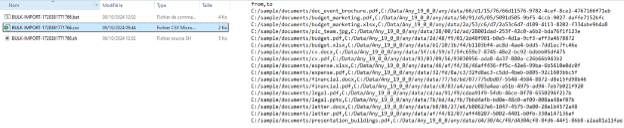
The copy of the files must be done before starting the post-action management job, so the content is reachable by the "fulltext" and "PDF conversion" actions.
Integrating the files as they go
This strategy integrates the files into the Any file system the first time they are changed. When the content is integrated into Any, it keeps the location specified when building the batch. This path is used as the default path if it is not found in the Any file system. If Any tries to change a file (edition, new version, etc.), this new file is integrated into the Any file system.
This option requires your files to be reachable from the Any message servers and from the instances of the Any web application. You can achieve this by copying your files, when building the data set, into a folder shared between the servers. Otherwise, you can also copy your whole file tree onto the different servers, keeping the same paths.
Copy on message consumption
This strategy requires the path specified when building the data set to be reachable by the Any message server. This mode is enabled in the import message.
IMessageBulkImport msg = new MessageBulkImport();

// Set source, application and batch number/name
msg.setSource(sourceName);
msg.setApplication(application);
msg.setBatchNumber(batchNumber);

// set the list of contents to import
msg.setBulkContents(batchImport);
// Set copy file strategy
msg.setIsFileCopyOnConsume(true);
In this case, the file is integrated directly into the Any file system as soon as it is imported there. Warning: this necessarily impacts the content import speed a little, since the files must be copied from one folder to another.
Copy in post-actions
This strategy requires the path specified when building the data set to be reachable by the Any message server.
This mode is usable in the post-actions job through the copy_source_file or move_source_file action.
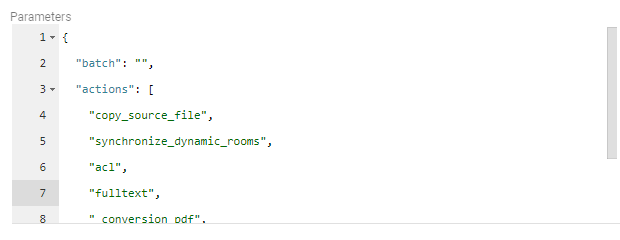
In this case, the file is integrated into the Any file system when the job runs (see the Post-actions after a bulk import section).
Post-actions after a bulk import
The bulk import was designed so your documents are reachable and usable quickly in your document base. After the processing of the batch, your documents are viewable (see the File management strategies section) and possibly available in a room (see the Adding to a static room section), within the room accessibility constraints.
To finalize the import of your documents, you must run the following actions:
- copy the source files (optional).
- synchronize your documents in the dynamic rooms.
- apply the visibility restriction ACLs.
- extract the text to allow searching by the content of the files.
- perform the PDF conversion.
These actions are performed through the JobBulkImportPostActions job. The processing was optimized to handle large volumes of data and can be stopped then resumed at any time. This job also tracks the progress of the actions.
Actions
File copy or move
ACTION: copy_source_file or move_source_file
Depending on the chosen file management strategy, you can copy or move your files into the Any file system through this action.
Dynamic rooms synchronization
ACTION: synchronize_dynamic_rooms
This action places your imported contents in the dynamic rooms. If your contents are only in static rooms, this action is not needed: you can place them directly when building the batch.
Visibility permission
ACTION: acl
This action applies the visibility permissions configured in your applications.
Text extraction
ACTION: fulltext
This action extracts the text of the files to enable the full-text search. This can take a lot of time depending on the volume of your files.
PDF conversion
ACTION: conversion_pdf
This action performs the PDF conversions and the thumbnail addition. This can take a lot of time depending on the volume of your files.
Finalization
ACTION: mark_as_finished
When all your actions are finished, you can mark your documents as finished so the next run of the job no longer processes them. This action must be placed at the end.
Job configuration
Edit the job named JobBulkImportPostActions: you can reach its different configurations.
By default, the actions are applied to every bulk-imported and non-finalized content. You can restrict the application scope with the following parameters:
-
"filter": predicates to filter the contents the actions are applied on (e.g. "standard.status=Approved").
-
"query": a full GQL query to filter the contents the actions are applied on. For instance:
select * from documents where standard.status='Approved' -
"batch": specifies the name of the batch if you want to apply the actions only to the contents imported by this batch. By default, the job applies to every non-finalized content. This parameter can be used alone or combined with "query" and "filter".
-
"actions": list of the actions to apply in the given order (see the Actions section) (e.g. "["copy_source_file", "fulltext"]").
If your servers allow it, you can improve the processing performance by controlling the write batch size and the number of parallel processes, with the following parameters:
- "nb_threads" (default: 5): number of parallel processes handling the actions.
- "nb_threads_(action)" (default: "nb_threads"): number of parallel processes dedicated to a specific action (e.g. "nb_thread_fulltext": 8).
Starting and tracking the actions
Starting and resuming
Once the job is configured, you can start it. The "message" field tracks the evolution of the batch when you refresh the panel.
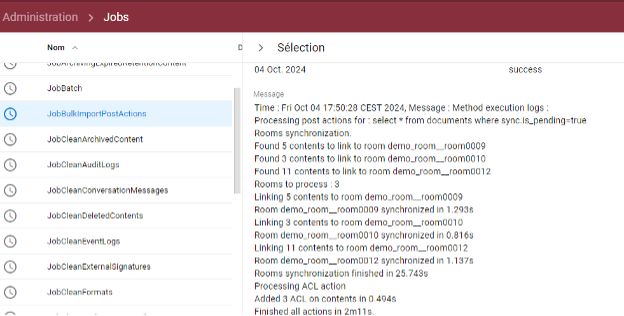
You can stop the job at any time. In this case, the current processing stops as soon as possible. To restart the job, you must wait for the stop to be notified in the job message.
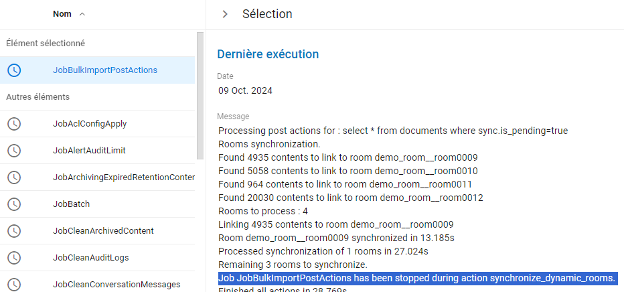
You can then restart the job: the processing resumes on the contents whose current action has not yet been performed, then continues with the next actions.
Tracking
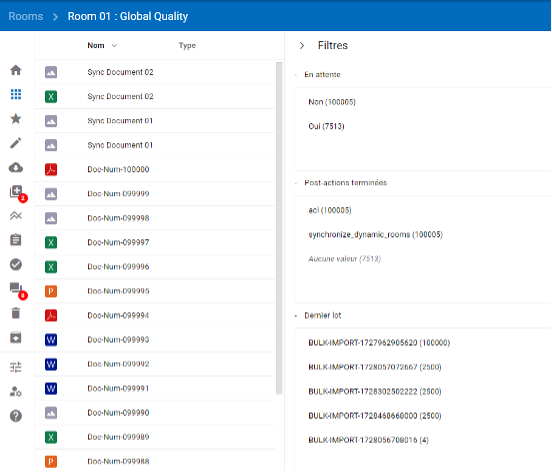
The bulk-imported contents have specific metadata you can use to track their evolution from Any:
- "sync.is_pending" (true/false): says whether the content is finalized or not.
- True: the content has been imported but is not yet finalized. It is processed by the job.
- False: the content has been finalized. It is no longer processed by the job.
- "sync.source": the name of the source specified at the send.
- "sync.last_batch": the name of the batch specified at the send.
- "sync.post_actions_finished": list of the actions already applied to the contents.
If your contents were imported with a static link to a room, you can track the progress of the post-actions from the concerned room, by adding the above metadata in the columns and the filters.
Benchmark
Server
- CPU AMD Epyc 7371 - 16c/32t - 3.1 GHz/3.8 GHz
- RAM 128 GB ECC 2400 MHz
- Data disks: 2×1.92 TB SSD NVMe
Environment
- OS: Ubuntu Server 22.04 LTS "Jammy Jellyfish"
- Ubuntu Desktop + Docker engine + Samba + various tools
- Dockers:
- 3 Elasticsearch dockers (3 primary nodes) from the ES 7.16.2 images
- 3 Mongo dockers (1 primary + 2 secondaries) from the Mongo 5.0.5 images
- 1 Kibana docker from the Kibana ES 7.16.2 image
- 1 metrics docker connected to Kibana and Elastic from a Metric Beats 7.16.2 image
- 1 ActiveMQ 5.15 docker from a modified ActiveMQ 5.15.16 image
- 1 Any docker for the Messaging Server and the Conversion Server from an Apache Tomcat 8.5 image
- 1 Any docker for the webapp and the thumbnails from an original Tomcat 8.5 image
Resources
- Global available memory: 95 GB
- 32 CPUs assigned
- No memory or CPU restriction per docker
- 4 GB swap per docker
- Sharing of the Any files between the different dockers through a Samba share on the same server
Any configuration
- 1 "demo" application
- 3 dynamic rooms with random distribution
- 1 dynamic room with every document
- 1 static room "room 001" assigned directly at the data generation
- 1 listing permission that applies to about 25% of the documents (pseudo-random distribution)
Messaging server configuration
- 5 processes dedicated to the "bulk_import" queue
Batch
- Batch of 3000 random documents with/without versions and multiformats
- 1 million contents
- Total size of the files to copy: 154 GB
- 5 processes sending the document batches in parallel
- Configured not to copy the file on consumption
Times
| Step | Average (approx.) | Total (approx.) |
|---|---|---|
| 1M available in the preconfigured static "room 001" | 0.63 ms / content | 10.5 min |
Copy of the files (154 GB), action: copy_source_file | 12 ms / content | About 3 h |
Auto filing in the 4 rooms, action: synchronize_dynamic_rooms | 1.26 ms / content | 21 min (1 room of 1M ≈ 12 min) |
ACL, application of the visibility restrictions (about 300,000 / 1M), action: acl | 0.6 ms / content | 10 min |
Fulltext extraction, action: fulltext (20 processes) | 40 ms / content | About 11 h |
PDF conversion (locally), action: conversion_pdf (20 processes) | 3 PDF / s | About 4 days |
The performance for the fulltext and the PDF conversion necessarily depends on the size and the nature of the documents as well as the conversion server.